similarity Report
Accessing the Similarity Report
To access the Similarity Report of a submitted document, go to the folder where the submission is located. In the Folder’s tab, you will find the submitted document.
To view the Similarity Report, click on the similarity index icon corresponding to that document. This icon displays the percentage in the “Report” column, which is known as the Similarity Score. The Similarity Score provides a quick assessment of the document’s performance. It’s essential to discuss a comprehensive analysis. When you click on the icon, the report will open in the document viewer for your review.
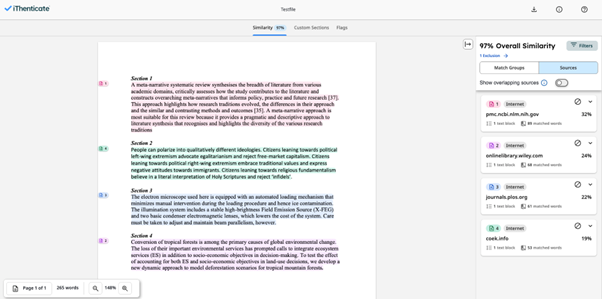
The Document Viewer
Matching sources are listed in the right panel. The similarities are highlighted in a color that corresponds to the matching source. There are four different report modes that allow you to view the desired information. The four modes are:
- Match overview shows the matches with the highest to lowest percentage of matching words.
- All sources shows matches between the primary document and specifically selected sources.
- Match breakdown reveals underlying sources of a top source.
- Side by side comparison shows matches compared side by side with the original source content.
Filters and Exclusions
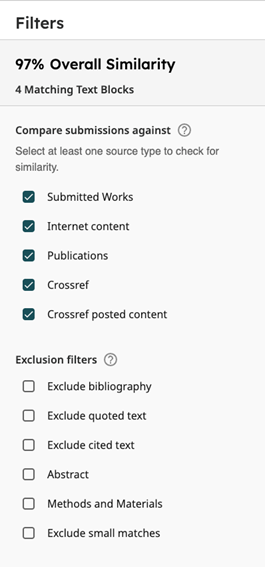
To apply filters and exclusions, select the filters icon at the bottom of the Document Viewer sidebar. You can exclude quoted or bibliographic material, small sources, small matches, sections and matches.
AI-Detection tool
iThenticate provides an AI-detection feature to identify potential AI-generated content to support content integrity.
Please note that this functionality is not enabled by default in iThenticate. If you would like to use the AI-detection tool, please contact your faculty’s Key User to request access.